Adding a QR Code RSVP to Your Anniversary Invitations
Make RSVPs effortless for a 25th or 50th celebration—without losing the charm of a beautifully printed card.
QR-code RSVPs are a simple way to collect replies online while keeping a timeless paper invitation. Guests scan the square on your card, tap “Yes” or “No”, and share details such as dietary notes—all in seconds. In this guide, we’ll explain what a QR RSVP is, how it works on an anniversary invite, and the practical steps to set one up on Utterly Printable, including ideas for sub-events (like a next-day brunch), plus-one tracking and privacy best practice. We’ll also point you to relevant designs, from botanicals to photo cards, so you can find a look that suits your silver or golden milestone.

The user adds and positions a scannable QR code within a personalised invitation to enable quick guest access.
1) What is a QR code RSVP—and why add one?
A QR RSVP is simply a scannable square that launches your online response form. It doesn’t hold personal data itself; it’s just a link, presented in a way that’s quick to use on a phone. For anniversary parties—especially 25th (silver) and 50th (golden) milestones—QRs cut admin and reduce lost reply cards, all while keeping your stationery elegant.
On Utterly Printable, you design your anniversary invitation as usual and add a QR that opens your chosen digital RSVP (for example, RSVP.studio). The benefit is speed and accuracy: names are typed correctly, numbers are summed automatically, and you can view responses at a glance. Utterly Printable’s online editor even lets you generate the QR directly in the design, so everything is placed neatly and on-brand.
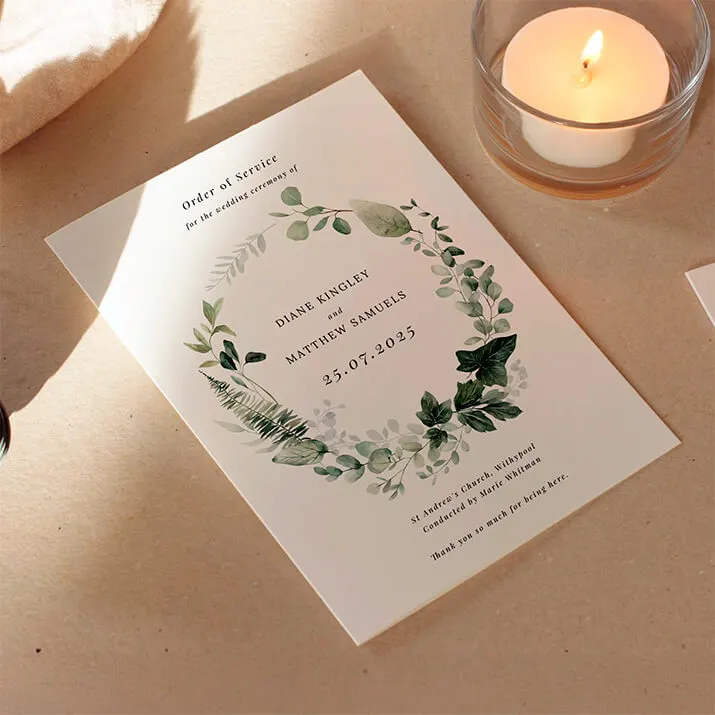
If you’re browsing designs, you’ll find plenty of styles that work beautifully with a discreet QR—think leafy motifs, party-ready layouts, or keepsake photo cards. Start with our curated selection of 25th wedding anniversary invitations, or head straight to theme-led collections such as botanical 25th designs, fun & celebratory styles, and photo anniversary invitations for “then & now” layouts.
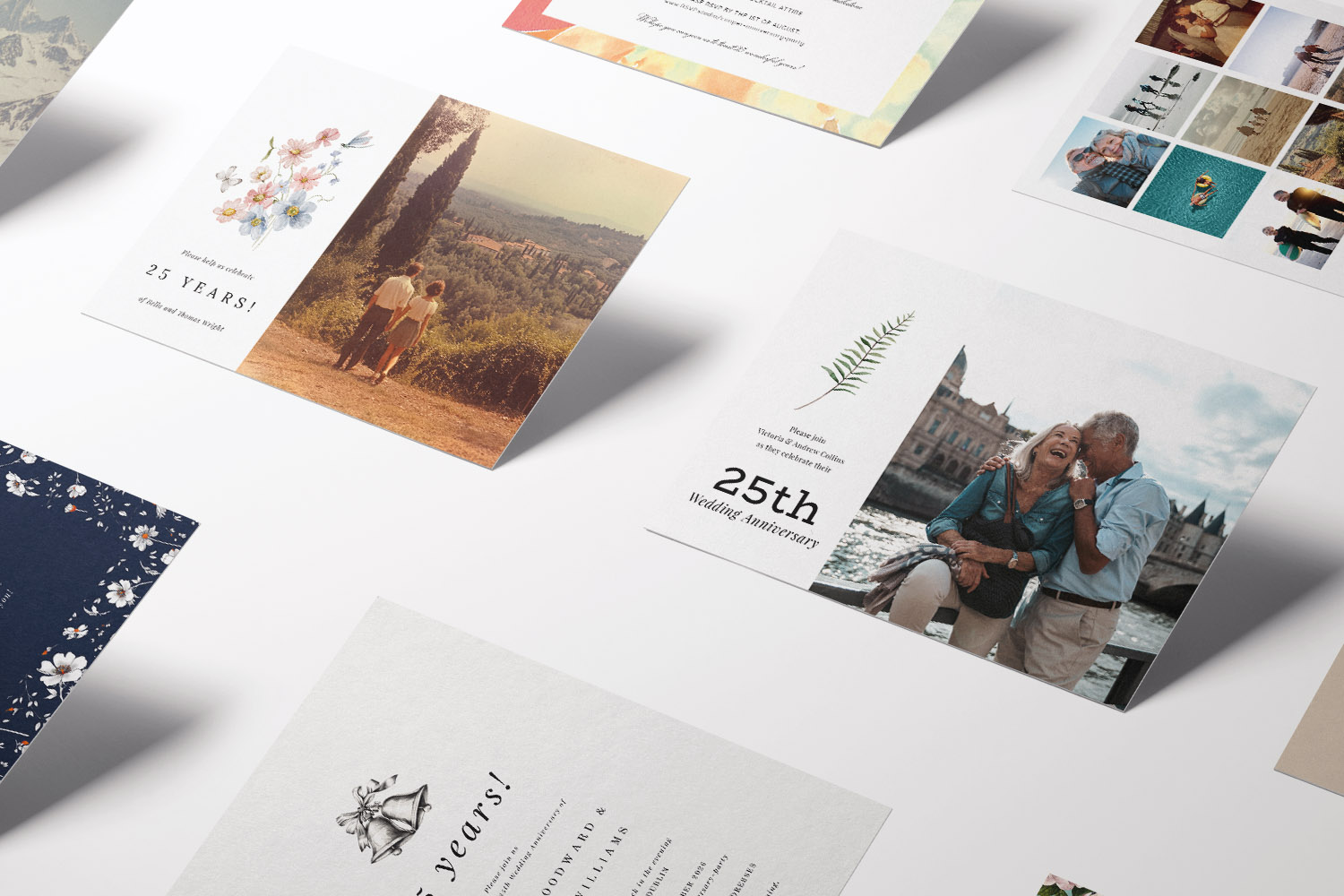
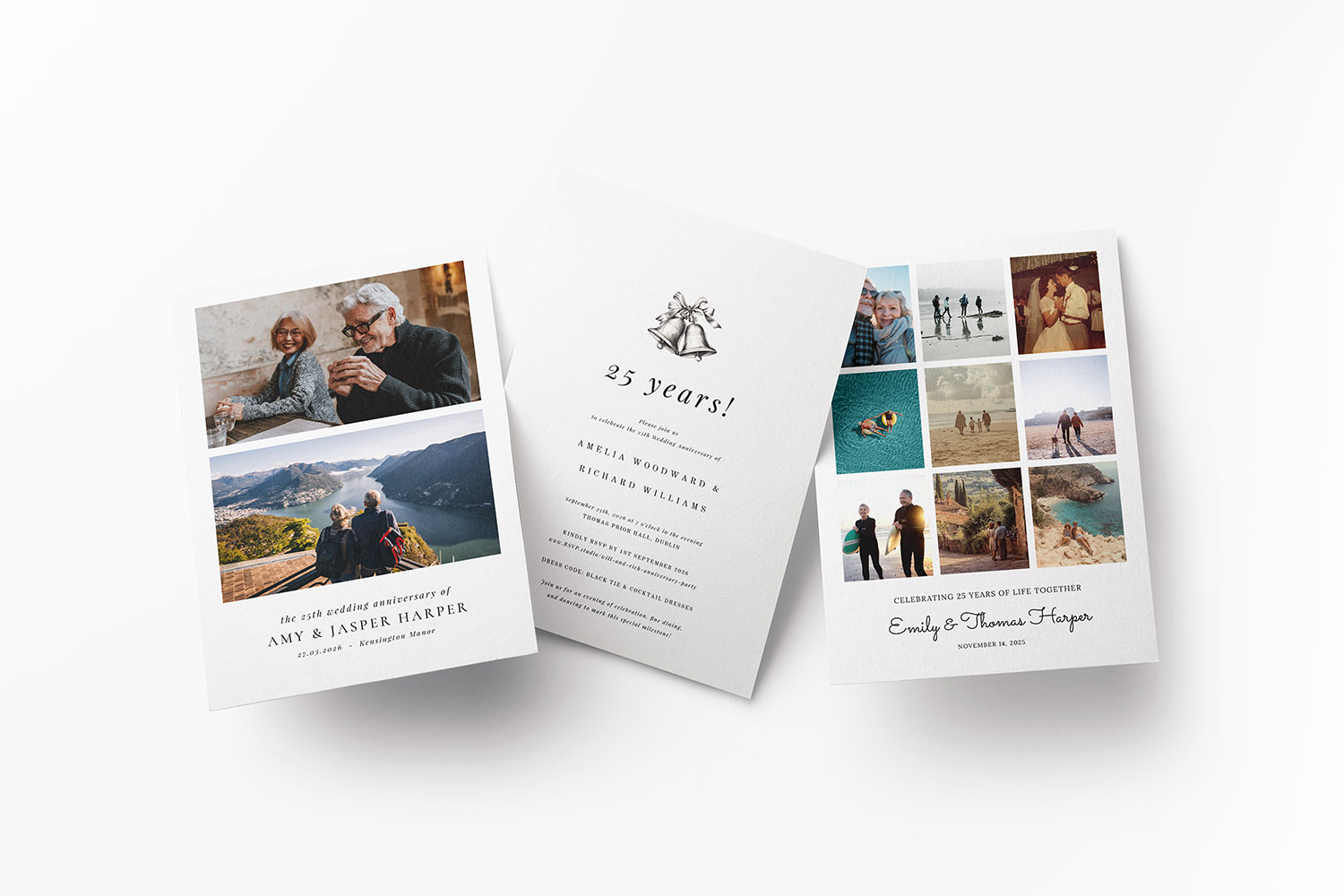
A selection of 25th wedding anniversary invitations featuring floral motifs and personal photos, perfect for celebrating a special milestone.
2) How to add a QR RSVP to your Utterly Printable invitation (step-by-step)
1. Create your online RSVP.
Set up your RSVP form on your preferred platform (for example, RSVP.studio) and copy the live link. Keep the form short—attendance, guest names, any plus-ones, and dietary notes are usually enough for an anniversary party.
2. Choose your design.
Pick an invitation that suits your tone: refined botanicals, joyful confetti, or a sentimental photo card. You can personalise fonts, colours and wording across our 25th collection, including the themed pages for botanical, fun, and photo designs.
3. Add the QR code in the online editor.
Open the design in the editor and use the QR element. Paste your RSVP link and place the code where it’s easy to spot but doesn’t steal focus—bottom right or the reverse side works well. You can resize the QR and keep a little white space around it to ensure fast scanning.
4. Include a short prompt.
Under or beside the QR, add a clear line such as “Scan to RSVP” or “Prefer to reply online? Scan this”.
5. Test on a phone.
Use your mobile to scan the preview. If the link opens instantly and the page is legible, you’re good to go.
6. Choose print or digital.
You can download a high-resolution PDF for email/WhatsApp sharing, or order professionally printed cards. Print orders are produced on premium, FSC-certified card stocks with crisp Canon iX quality; envelopes are available, including optional guest-addressed sets. If you’d like to check colour and feel first, a printed sample is available before committing to a full run.
7. Practical print tips for QR legibility.
- Keep the code at least 20–25 mm wide on A6/5”×7” cards.
- Avoid placing it over patterns; a plain background is best.
- High-contrast (black QR on light area) scans fastest.
- For double-sided cards, consider putting the QR on the reverse so the front remains purely decorative.
8. Timeline & delivery (UK).
Standard production and delivery typically take around three working days, with express options available if you’re in a hurry. For the Highlands and Northern Ireland, allow a touch more time. (Printing and delivery are UK-only.)
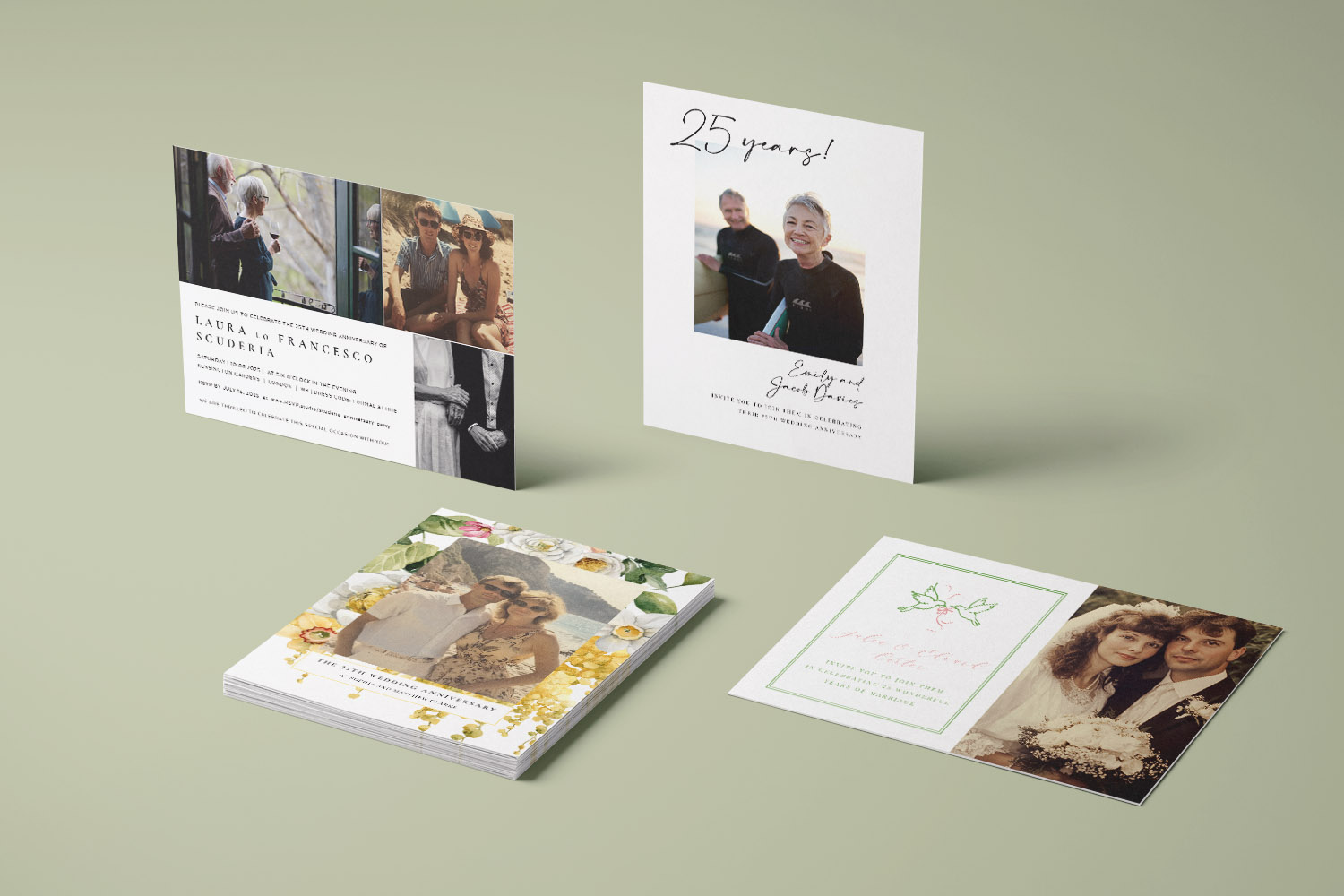
Celebrate your milestone with 25th wedding anniversary invitations, available in customisable styles with space for cherished photos.
3) Smarter guest management: sub-events, menu choices, plus-ones & privacy
A QR RSVP really shines once you plan what to ask. For milestone anniversaries, you might have more than one gathering: a main evening party, a family lunch, or a next-day brunch. Add a simple tickbox list on your form (e.g., “Evening party”, “Sunday brunch”) so guests can select what they’ll attend. For those offering meal options, include one concise question for menu preference or dietary notes; short free-text fields work well for allergies.
Plus-one tracking
If some invitations include a guest, clarify this in the wording (“We’ve reserved two places in your name”). On your form, you can include a name field for the plus-one and an attendance toggle, so you always know true head-count. Where you’re limiting numbers, consider hiding the form behind a unique link you only share with invited households.
Privacy & etiquette
The QR itself only encodes a URL; it does not store personal information. Keep your form minimal, ask only what you need for the event, and avoid collecting sensitive data. If you’re concerned about link sharing, you can note on the card that the form is for invited guests only. It’s also considerate to provide a non-digital fallback—include a small line such as “RSVP by phone if you’d prefer”, so less tech-confident relatives can still respond.
Design balance
Even with a QR, the card design should remain elegant. Consider keeping the code small and cleanly aligned, and use the reverse side for practical details: dress code, parking, gift notes, or a contact number. If you’re torn between decorative and practical, our photo and botanical ranges are particularly forgiving layouts for tucking in a neat QR.

QR Code RSVP: Frequently Asked Questions
Quick answers to common queries about adding and using QR RSVPs.
They open the camera app on a smartphone, point it at the QR, and tap the on-screen link. It takes them straight to your RSVP form, where they confirm attendance and share any notes.
Always include a written alternative—an email address or phone number—so everyone can reply. You might also print the RSVP web address in small text for manual typing.
Yes—add a simple multi-choice question on your RSVP form (main party, brunch, lunch) so guests can tick all that apply. Keep labels short and clear.
Yes. A QR on your card is just a link, not a data store. The usual privacy considerations apply to your form provider: ask for minimal information and keep it to event-related details only.
Yes—you can add or generate a QR in the online editor and link it to your RSVP, including RSVP.studio. It’s quick to place and easy to test before ordering.
Browse designs and start personalising: explore our main page for 25th wedding anniversary invitations, or jump straight into botanical, fun, and photo styles to see how a neat QR can fit right in.
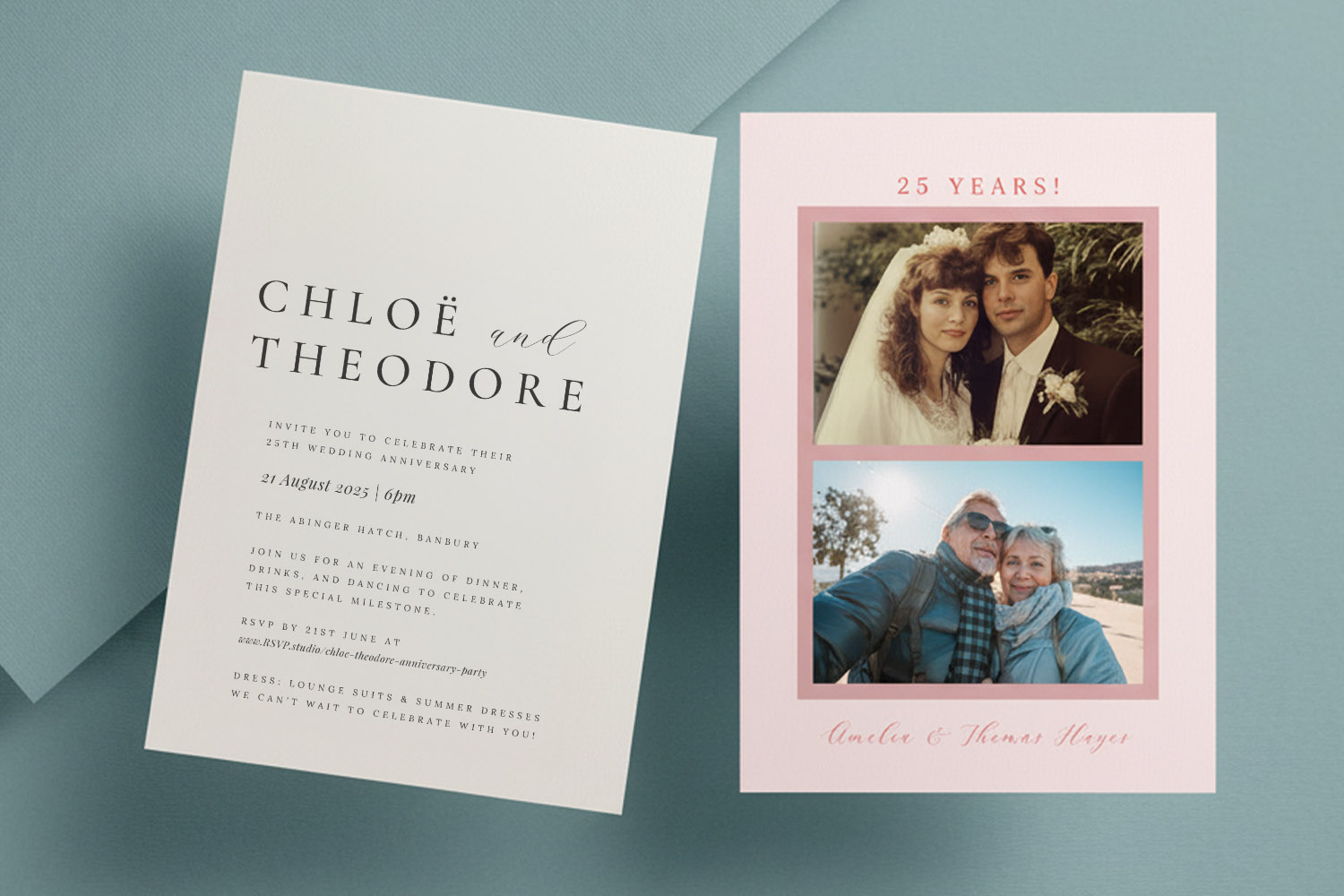
Formal vs informal wedding anniversary invitation wording: how to choose the right tone
Discover how to choose between formal and informal wedding anniversary invitation wording with this helpful guide. Learn the key differences, get practical structure tips, and find ready-to-use templates to set the perfect tone for your celebration.
Photo vs NonPhoto Anniversary Invitations: Which Should You Choose?
Deciding between photo and non-photo anniversary invitations? This article explores how each style sets the mood for your celebration, with tips on choosing images, paper types, and layouts to ensure your 25th wedding anniversary invitations look thoughtful and memorable.