Managing plus-one invitations with a digital RSVP
Plus-ones can be the difference between a comfortably full reception and a room that’s over capacity. If you’re using a digital RSVP, a little structure and clear wording go a long way. This guide explains exactly how to manage plus-ones using RSVP.studio (Utterly Printable’s digital RSVP tool), how to avoid confusion, and what etiquette to follow on invitations and your RSVP page.
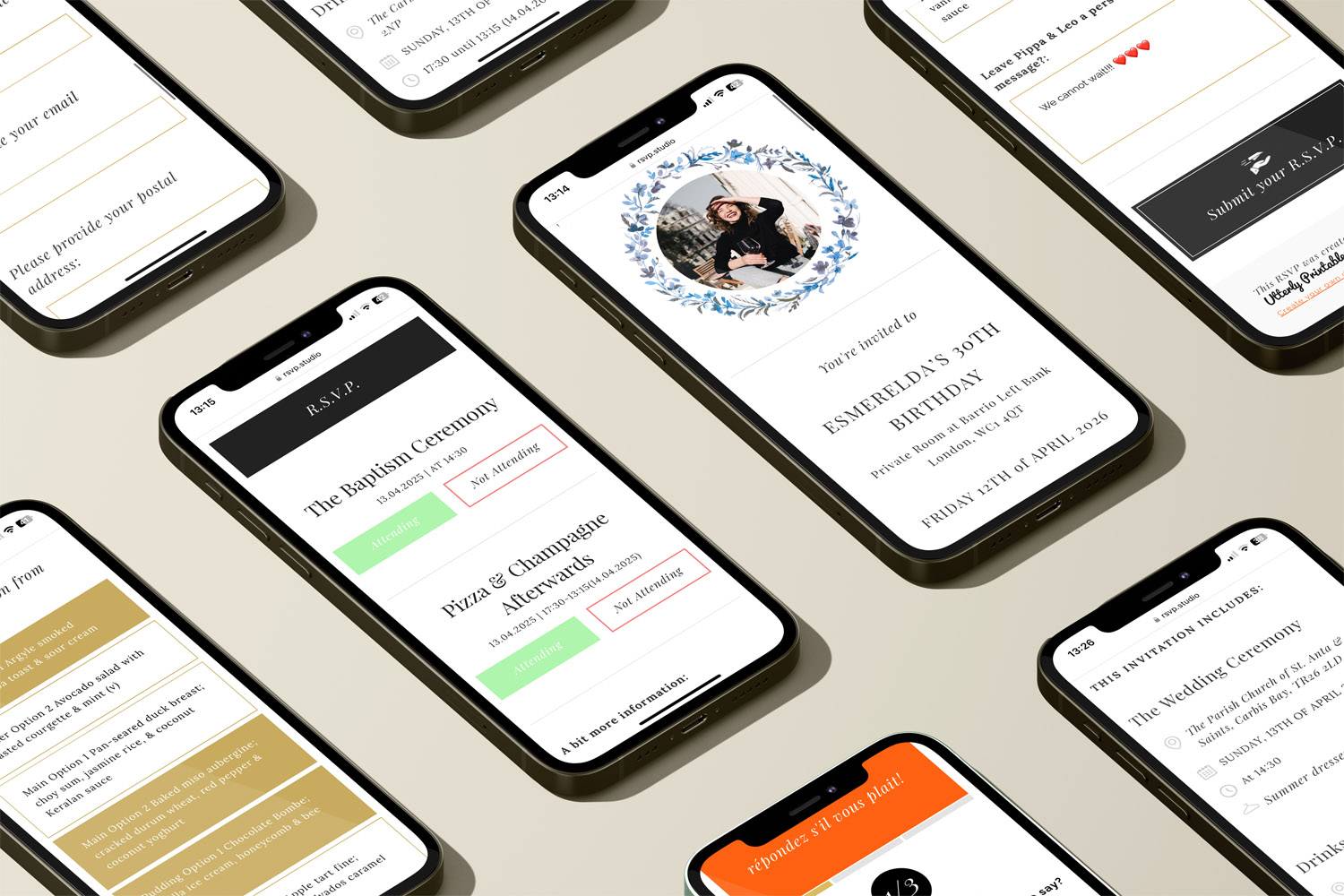
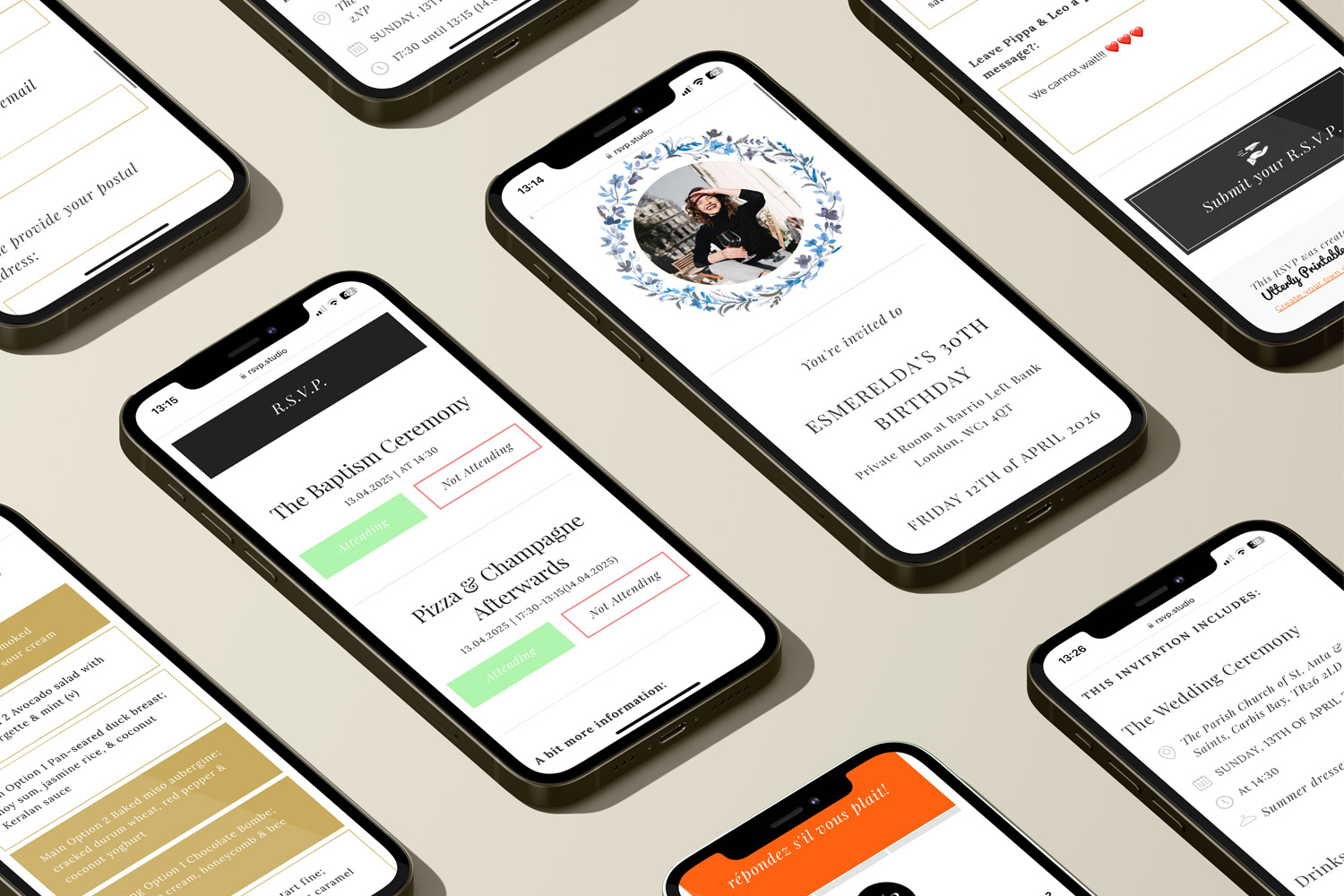
RSVP.studio digital invitations make managing event responses easy, with clear RSVP options and event details shown on modern smartphones.
1) How plus-ones work in RSVP.studio
RSVP.studio is a mobile-ready RSVP link that you can share by text, WhatsApp, email or on printed invites. Guests tap the link, confirm attendance, and—if you allow it—add the name of one additional guest. You’re in control of the data you collect and the fields you show.
Practical tools you’ll use for plus-one control
- Plus-one toggle: Show or hide an “Additional guest name” field. When it’s visible, each response can include one guest name only, which prevents surprise extra attendees.
- Child-attendance control: A separate option for confirming children, so little ones don’t accidentally appear as unnamed “plus-ones”.
- Custom questions: Add guidance or collect detail (e.g., “If invited with a guest, please enter their first and last name”).
- Sub-events: Track who is attending the rehearsal dinner, ceremony, or next-day brunch—and whether the invited plus-one is coming to each.
- Password protection: Keep the link private to invited guests if you’re worried about it being shared.
- Live spreadsheet export: Download replies to Excel/Google Sheets for quick head-counts and to brief your caterer.
Because RSVP.studio doesn’t require you to upload a full guest list, it won’t preassign plus-ones to specific individuals. Instead, you decide whether the plus-one field appears, and you communicate who may use it via your invitation wording and the instructions on your RSVP page. This keeps the tool simple while still giving you tight control over numbers.
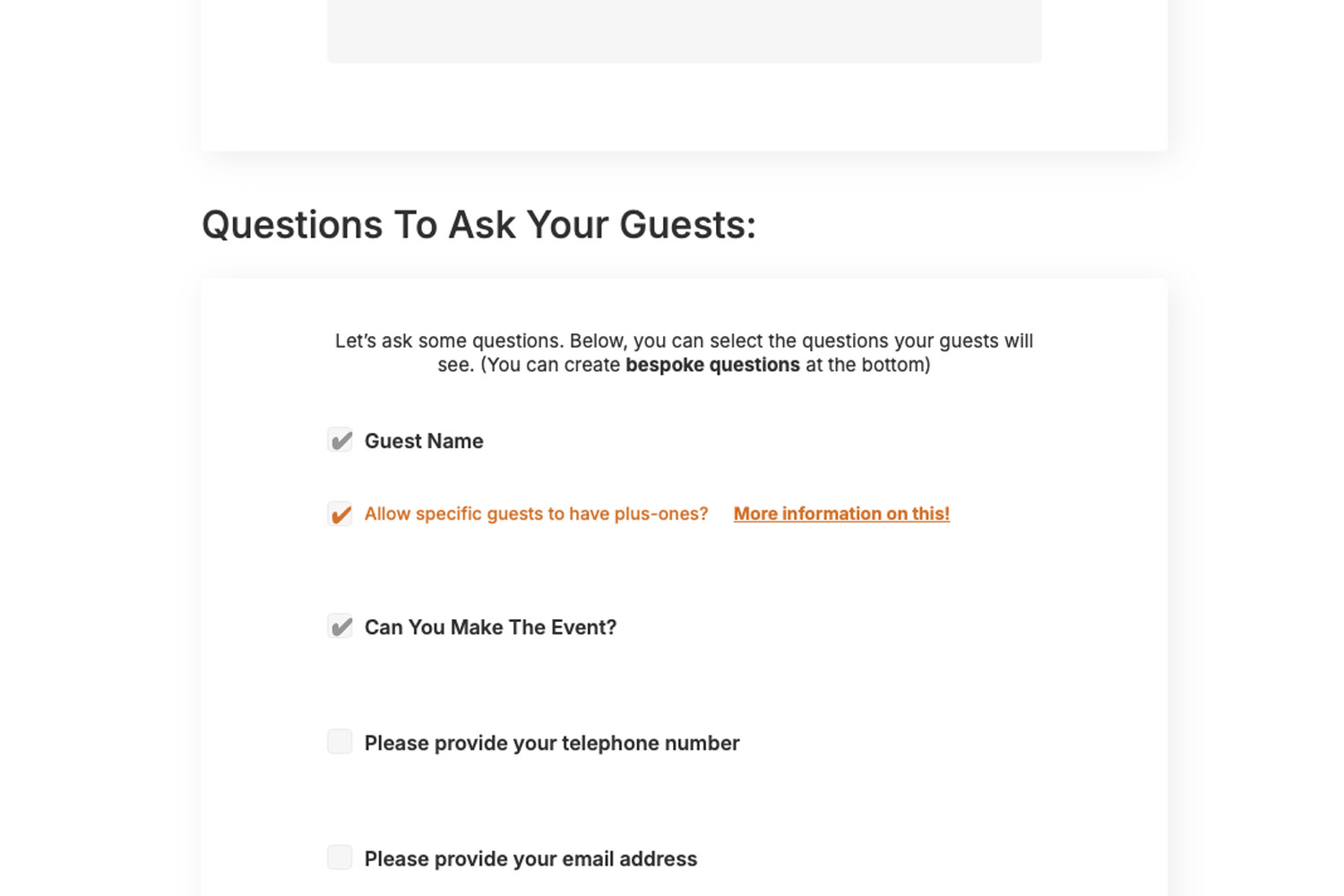
RSVP.studio digital RSVP form lets you customise guest questions, including plus-one permissions and event attendance, for easy event planning
2) Step-by-step: set your RSVP to allow (or not allow) plus-ones
- Create your RSVP link on RSVP.studio and choose your URL slug (note: once set, it can’t be changed).
- Decide your plus-one policy:
- No plus-ones at all: Hide the additional guest field; add a short note on the page, e.g. “We’ve chosen a small celebration—RSVPs are for the named invitee(s) only.”
- Plus-ones for some guests only: Leave the field hidden, and clarify on those guests’ printed invites that they are attending “with guest”. Alternatively, show the field and use on-page wording such as “If your invitation includes a guest, please add their name below”. Either approach prevents others from assuming they can bring someone.
- Plus-ones for everyone: Show the additional guest field and keep it limited to one name per response.
- Enable child attendance (if relevant) so families can accurately confirm who’s coming without using the plus-one field for children.
- Add bespoke questions (e.g., accessibility needs, dietary requirements, transport preferences). Multiple-choice options make totals easy to review.
- Switch on sub-events if you’re tracking numbers for a welcome dinner or day-two plans. This helps you spot when a plus-one is attending the ceremony but not the brunch (or vice-versa).
- Preview on your phone to check the flow and wording. Keep instructions brief and friendly.
- Share the link or QR code on your printed stationery and save-the-dates. For cohesive wording and design, explore simple wedding invitation templates and clean, contemporary looks in our modern wedding invitation templates. If you’re announcing early, these photo save-the-date templates are ideal for including your RSVP link.

Elegant fruit cocktails served at an RSVP.studio event, perfect for welcoming guests and creating a stylish celebration atmosphere
3) Wording & etiquette: keeping things clear and kind
A digital RSVP makes head-counts simpler, but etiquette still matters. Use these wording tips to keep every guest on the same page.
On the printed invitation
- Name the invitees. “Emma Carter and guest” signals a plus-one. “Emma Carter” on its own means the invitation is for Emma only.
- If space is tight, be direct but warm. A small note such as “As much as we’d love to celebrate with everyone, we’re limited by space; invitations are for the named guests only” is perfectly acceptable.
On the RSVP page
- Reinforce the policy. A short line at the top—“If your invitation includes a guest, please add their name below”—prevents misunderstandings.
- Use the tools. Hide the “Additional guest” field when you’re not offering plus-ones; show it (limited to one name) when you are.
- Separate children from plus-ones. Enable the child-attendance control so parents aren’t left guessing.
- Be precise about sub-events. If only certain parts of the weekend include plus-ones (e.g., evening reception yes; ceremony no), say so next to those options.
Follow-up etiquette
- No automated nudges. RSVP.studio doesn’t send reminder emails or track email opens. If you need to chase replies, set a polite date on your invitation and follow up by message or call.
- Confirm menu choices per person. When a guest adds a plus-one, the form can ask for that person’s dietary needs and menu pick, keeping your caterer’s spreadsheet clean.
- Lock down near your deadline. Use the pause switch on your RSVP when you hit capacity; you can still export your data and make edits, but no new responses will come in.
Wording examples you can copy
- Allowing plus-ones for some: “If your invitation includes a guest, please add their full name below. Otherwise, please RSVP for yourself only.”
- No plus-ones: “We’re keeping things intimate and, sadly, can’t accommodate additional guests. Thank you for understanding.”
- Children’s policy: “We love your little ones, but we’re hosting an adults-only celebration. Please RSVP for the named guests only.”
These small cues—on paper and on your digital form—remove ambiguity and keep numbers precise without sounding strict.

FAQ
You’re not alone if plus-ones make you nervous. Below are concise answers to the questions couples ask most when setting up their digital RSVP.
Hide the additional guest field entirely. If you’re inviting a limited set of people “with guest”, keep the field visible but add clear wording on the page that only those named on the invitation should use it.
RSVP.studio doesn’t require a guest list upload, so it won’t preassign companions to individuals. Instead, control behaviour with the plus-one toggle and your invitation wording. This keeps setup quick and head-counts accurate.
Use the sub-events feature to gather attendance for each part of the celebration (welcome drinks, ceremony, brunch). Guests can indicate whether their plus-one is joining for each event.
Yes—switch on password protection so only invited guests with the password can access your form.
Include a multiple-choice question for each attendee (e.g., “Vegan / Vegetarian / No nuts / No seafood / Other”). When a plus-one is added, the same questions appear, and your export groups answers neatly.
Related reading & tools
Build your RSVP page: digital RSVP website for weddings
coordinate paper and digital: explore simple wedding invitation templates, browse modern designs, and announce early with photo save-the-date templates.
How to Create a Personalised RSVP.studio Link (Step-by-Step Guide)
Learn how to create a personalised RSVP.studio link for weddings, birthdays, or corporate events. This guide shows you how to customise your RSVP page, manage guest responses easily, and share your link-no spreadsheets needed.
Sharing your RSVP.studio link: WhatsApp, SMS, email and printed invitations explained
Learn how to share your RSVP.studio link for event invitations via WhatsApp, SMS, email, and printed cards. This guide explains best practices, guest experience on devices, QR codes, and proper etiquette for sending or resending your RSVP link.
Using Sub-Events in RSVP.studio for Multi-Day or Multi-Part Celebrations
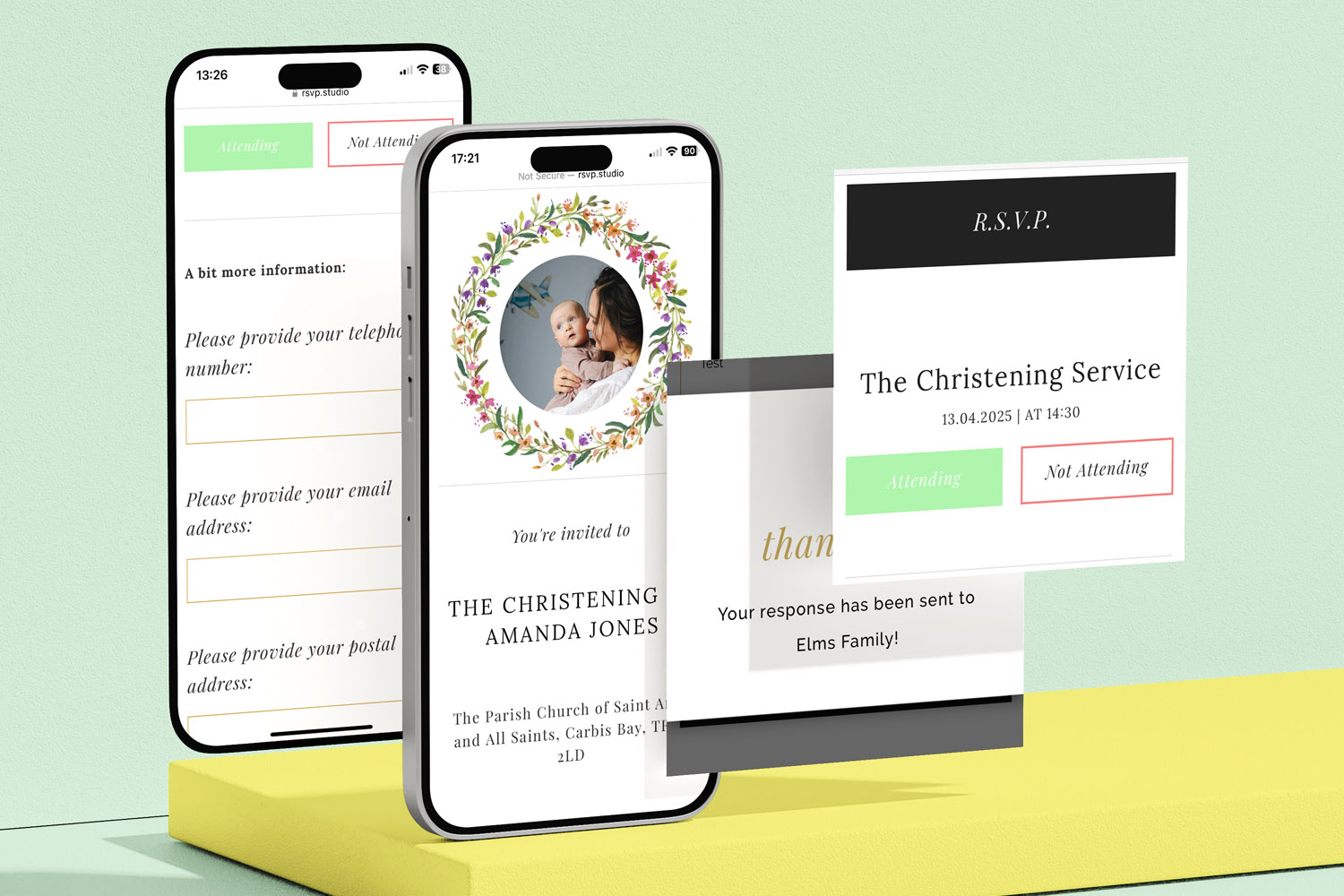
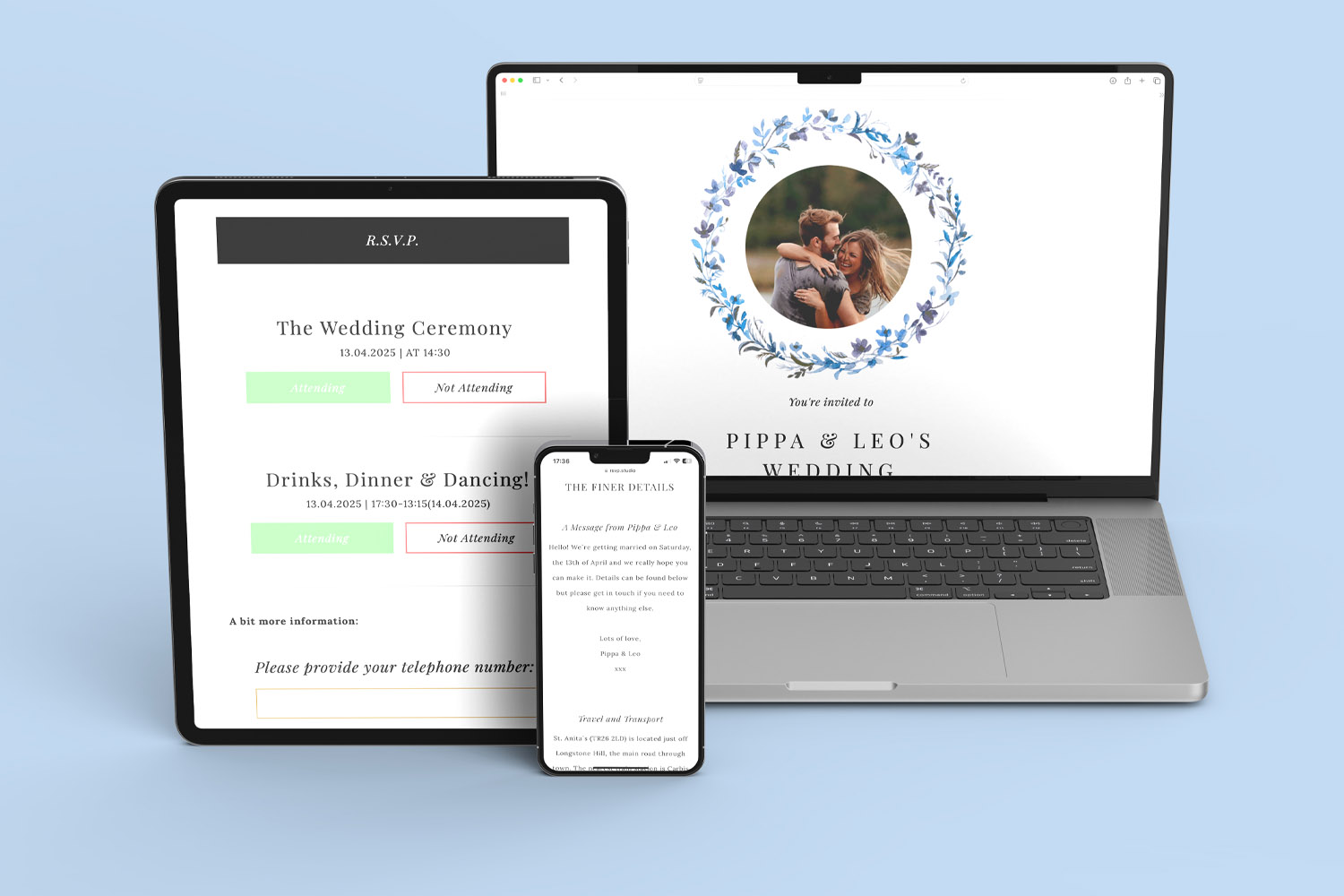
Discover how using sub-events in RSVP.studio streamlines planning for multi-day or multi-part celebrations, allowing you to manage separate RSVP replies, track attendance for each event segment, and keep all guest information organised in one convenient place.
What to Include on Your RSVP.studio Event Page
Learn what to include on your RSVP.studio event page for smooth planning and clear communication. This guide highlights key details, optional extras, and tips to help you gather accurate RSVPs and ensure a welcoming, mobile-friendly guest experience.

From Our Blog
Online RSVP websites provide a streamlined solution for event planning. Visit the blog for insights into setting up RSVP pages for weddings, birthdays, and other celebrations.