Using Sub-Events in RSVP.studio for Multi-Day or Multi-Part Celebrations
Organising a celebration that spans more than one day—or has distinct parts—often means guests are invited to some elements but not others. Sub-events in RSVP.studio make that simple: you can list each part (for example, a rehearsal dinner, ceremony, and reception), collect replies for them separately, and keep all the information in one tidy place. Sub-events come with their own date, time, and venue fields, and all replies can be downloaded to a .csv spreadsheet for planning.
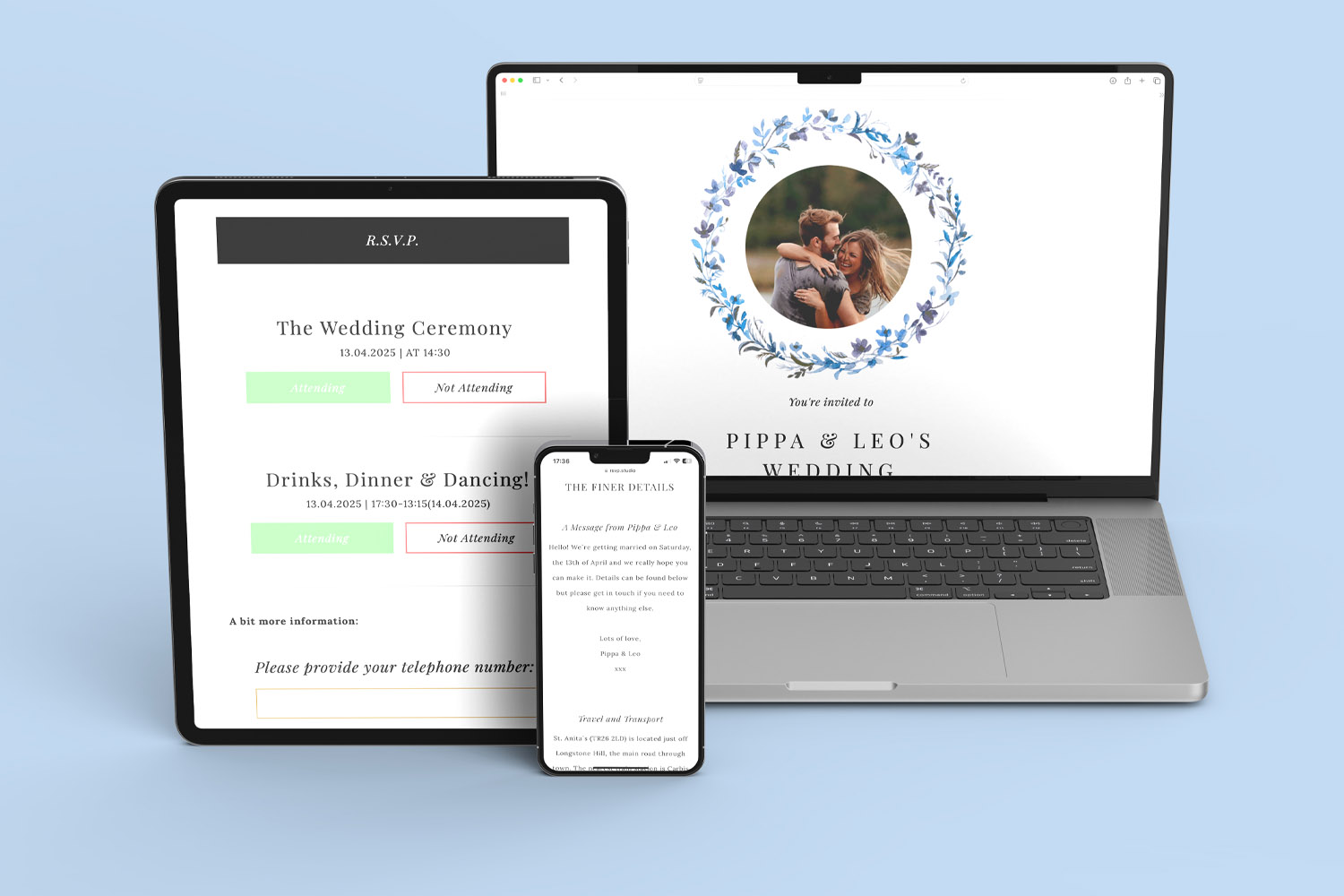
RSVP.studio weddings platform shown on multiple devices, perfect for managing invitations and guest responses for your special day.
What sub-events are—and when to use them
A “sub-event” is a self-contained part of your overall occasion. Each sub-event has its own title, date, start and finish time, and venue, with guests able to RSVP “yes” or “no” for that specific part. This is particularly handy when:
- Weddings: you’re inviting everyone to the ceremony and evening reception, but only close family to the rehearsal dinner—or you’re hosting a next-day brunch.
- Funerals & memorials: you want to record attendance for the service separately from the wake or gathering afterwards.
- Corporate events: you’re running a keynote plus breakout sessions and need session-level head-counts.
The result: fewer mixed messages, fewer follow-ups, and cleaner numbers for caterers, venues, and transport teams. If you’re still choosing printed stationery to accompany your plans, you might like our matching ranges—for instance, browse our engagement party invitations for Plus-one get-togethers, 18th birthday party invitations for milestone celebrations, or elegant 25th wedding anniversary invitations.

The screen shows a user adding and configuring sub-events so guests can respond to different parts of an event.
How to set up sub-events in RSVP.studio (step-by-step)
If you’re new to the tool, start here: create your online RSVP website, then follow the steps below.
- Create or open your RSVP page
In your Utterly Printable account, open the RSVP.studio project for your event. - Add your main event details
Give your page a clear title (e.g., “Amelia & Rowan’s Wedding”), add the primary date if there is one, and include any general information that applies to the whole occasion—dress code, travel hints, or accommodation notes. - Add your first sub-event
Look for the option to add a sub-event. Give it a name (“Rehearsal Dinner”), then fill in: - Date (e.g., Friday 6th September)
- Start & finish time (e.g., 18:30–21:30)
- Venue & address
- Map link (optional but extremely helpful)
- Add more sub-events as required
Create entries such as “Ceremony”, “Reception”, and “Sunday Brunch”—or for corporate schedules, “Keynote”, “Breakout: Marketing”, “Breakout: Product”, and so on. - Ask the right questions (optional)
If you need menu choices or transport info, add multiple-choice questions. If a question is tied to a single part (e.g., “Which brunch dish?”), include the sub-event name in the question text so answers are easy to interpret later. - Set RSVP guidance
Add any deadlines or notes guests should see (“Please reply by 20 August”; “Parking at the church is limited”). - Preview the guest view
Check that each sub-event shows the correct title, date, time and venue, and that your questions read clearly. - Publish and share
Share the personalised link by email, text or WhatsApp, or print a short URL-QR code on your invites. All replies come back to the same place in your account, and you can download them as a spreadsheet whenever you need.
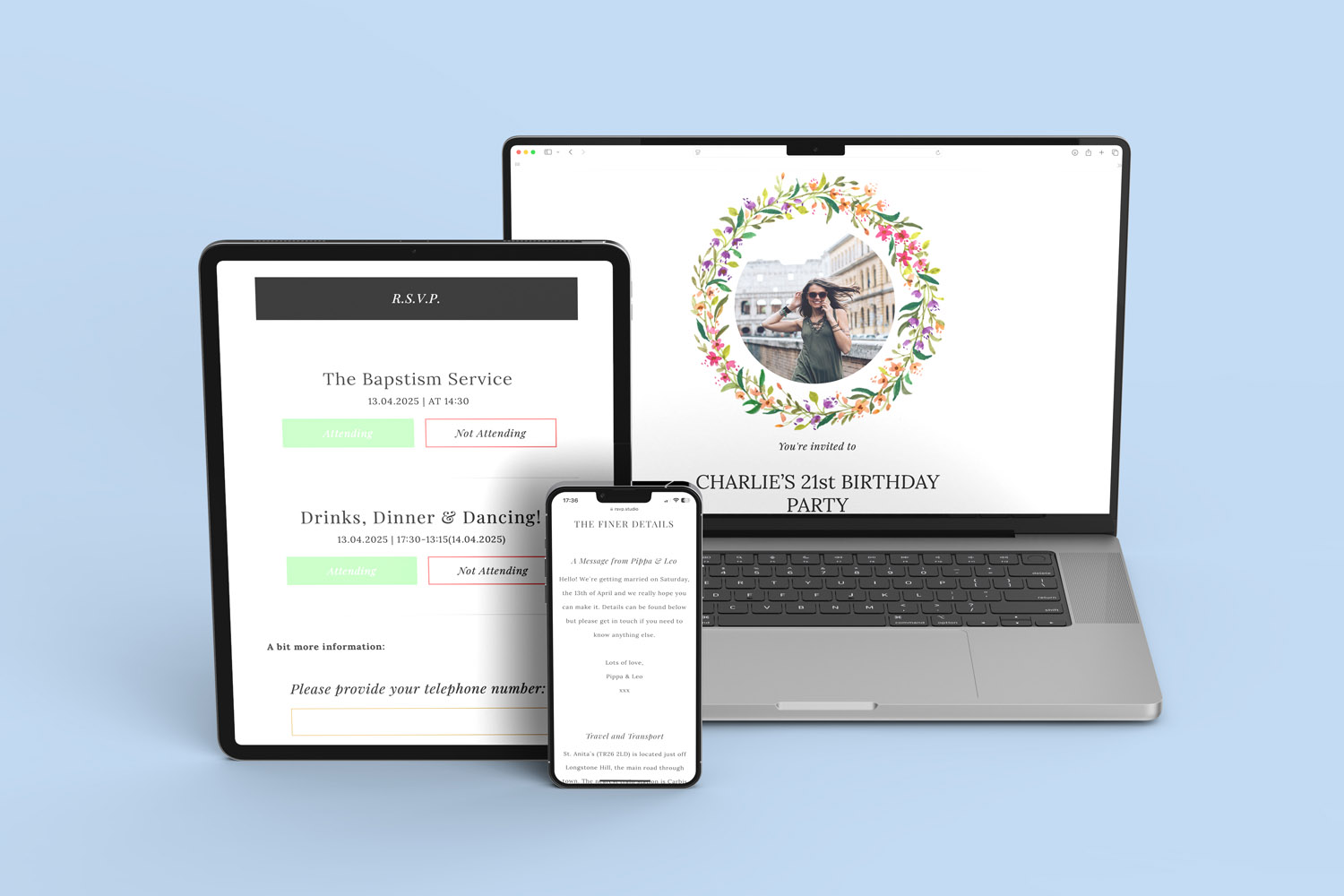
RSVP.studio shown on multiple devices, highlighting easy access to digital invitations and event details for any celebration
How guests see sub-events—and how to manage separate replies
On the guest side, your RSVP page lists each sub-event underneath the main details. Guests tick “attending” (or not) for each part and can add a plus-one name if you’ve enabled that field. If you’ve asked extra questions (dietary notes, transport options, song requests), guests answer these in the same flow.
Practical examples
- Wedding weekend: Invite everyone to the Saturday ceremony and evening reception, and only close family to the Sunday brunch. Guests can confirm Saturday attendance while declining Sunday—no awkward follow-ups, and you’ll still have names for the caterer.
- Funeral & wake: Record who will attend the service and who is joining the wake so you can size the room and refreshments appropriately.
- Corporate day with breakouts: Capture attendance for Keynote plus a Breakout Session. Add a multiple-choice question (“Choose one afternoon session”) to prevent double-booking.
How replies appear in your spreadsheet (.csv)
When you download the .csv, you’ll see a clean, table-style view. Typical columns include:
- Response timestamp
- Guest name and contact (email/phone if you collected them)
- Plus-one name (if enabled)
- Per-sub-event attendance: one column per sub-event, indicating whether the guest is attending
- Answers to any custom questions (menu picks, transport needs, etc.)
- Message/note to organiser (if you included a free-text box)
Tips for reading the .csv efficiently
- Filter by sub-event to produce head-counts—e.g., show everyone attending “Sunday Brunch”.
- Sort by dietary fields to share a quick list with caterers.
- Use simple formulas to total “Yes” responses per sub-event.
- Export fresh copies whenever you need an update; the file reflects the latest replies.

FAQs: Sub-events in RSVP.studio
A quick introduction to common questions, from setup to spreadsheets.
A sub-event is a separate part of your occasion—with its own date, time and venue—so guests can respond to each part individually (e.g., ceremony, reception, and brunch).
You can create multiple sub-events to mirror your schedule. Most hosts add two to five (for example, Friday dinner, Saturday ceremony, Saturday reception, Sunday brunch).
Mention invite-only parts in your invitation or email, and include clear wording on the RSVP page (“Brunch is for immediate family”). Because each sub-event has its own attendance field, you’ll see who has confirmed for that part.
If you enable a plus-one name field, guests can add the person they’re bringing. Attendance is still captured against each sub-event, so you’ll know where they’re attending together.
Open your event in your account and look for the download option to export replies as a .csv. It takes just a moment and gives you an up-to-date snapshot you can share with your venue or caterer.
P.S. If you’re planning the broader celebration, you may also find these useful alongside your RSVP page: browse engagement party invitations, plan milestone celebrations with our 18th birthday invitations, and explore elegant 25th wedding anniversary invites. And when you’re ready to set up, create your RSVP.studio page in minutes.
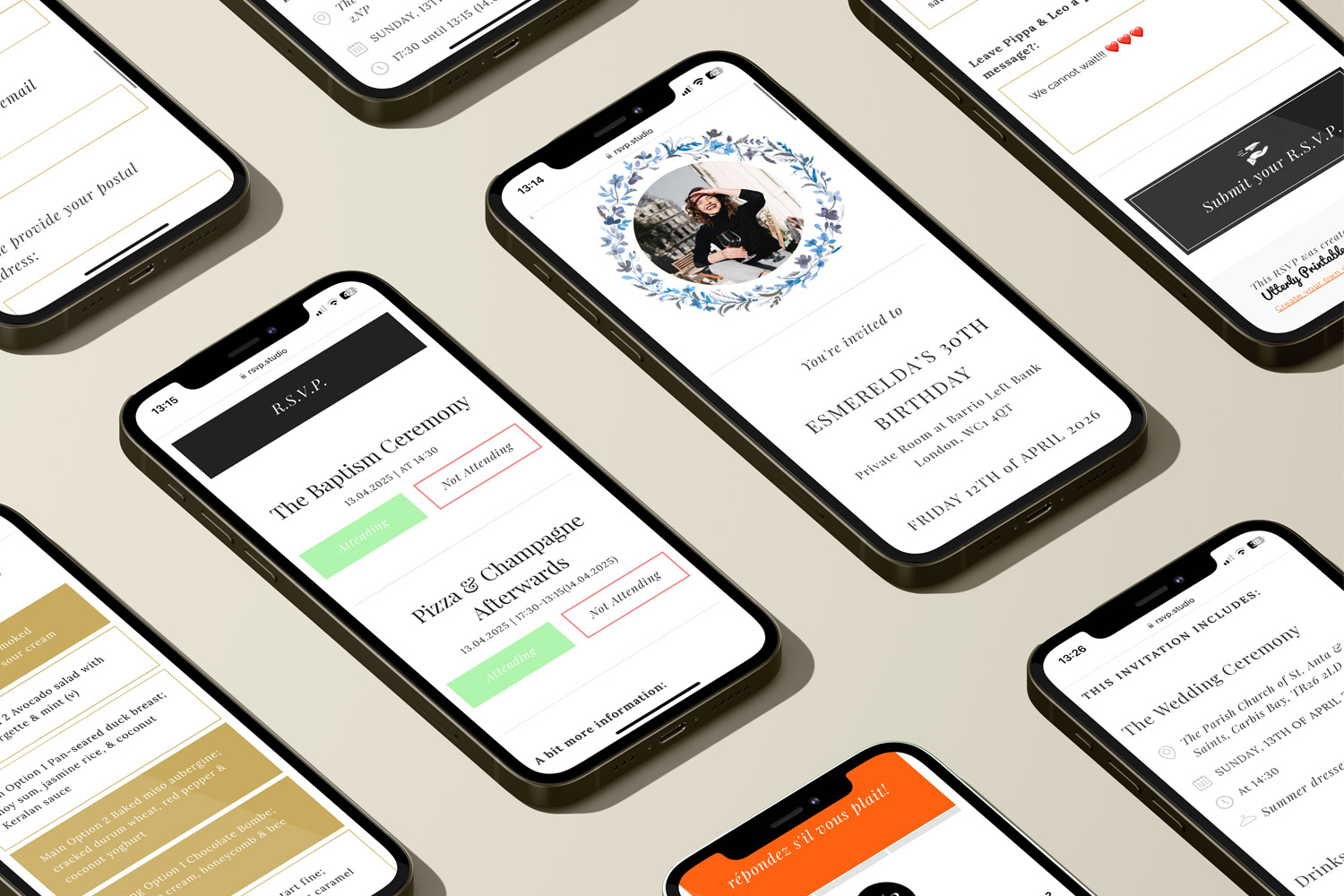
How to Create a Personalised RSVP.studio Link (Step-by-Step Guide)
Learn how to create a personalised RSVP.studio link for weddings, birthdays, or corporate events. This guide shows you how to customise your RSVP page, manage guest responses easily, and share your link-no spreadsheets needed.
Managing plus-one invitations with a digital RSVP
Discover how to manage plus-one invitations seamlessly with a digital RSVP using RSVP.studio. This guide covers practical tools, clear wording, and essential etiquette to help you keep your guest list accurate, organized, and stress-free for your celebration.
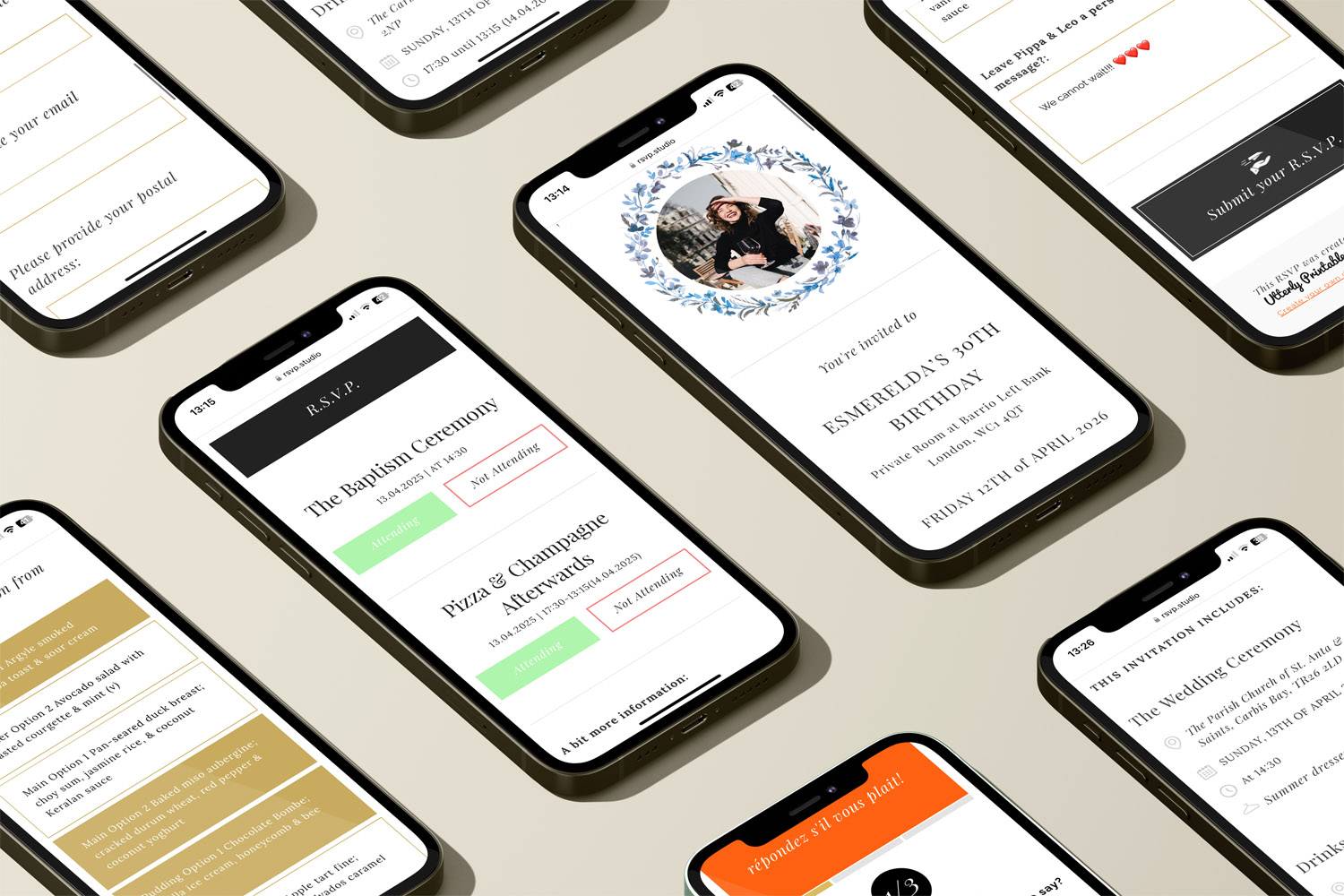
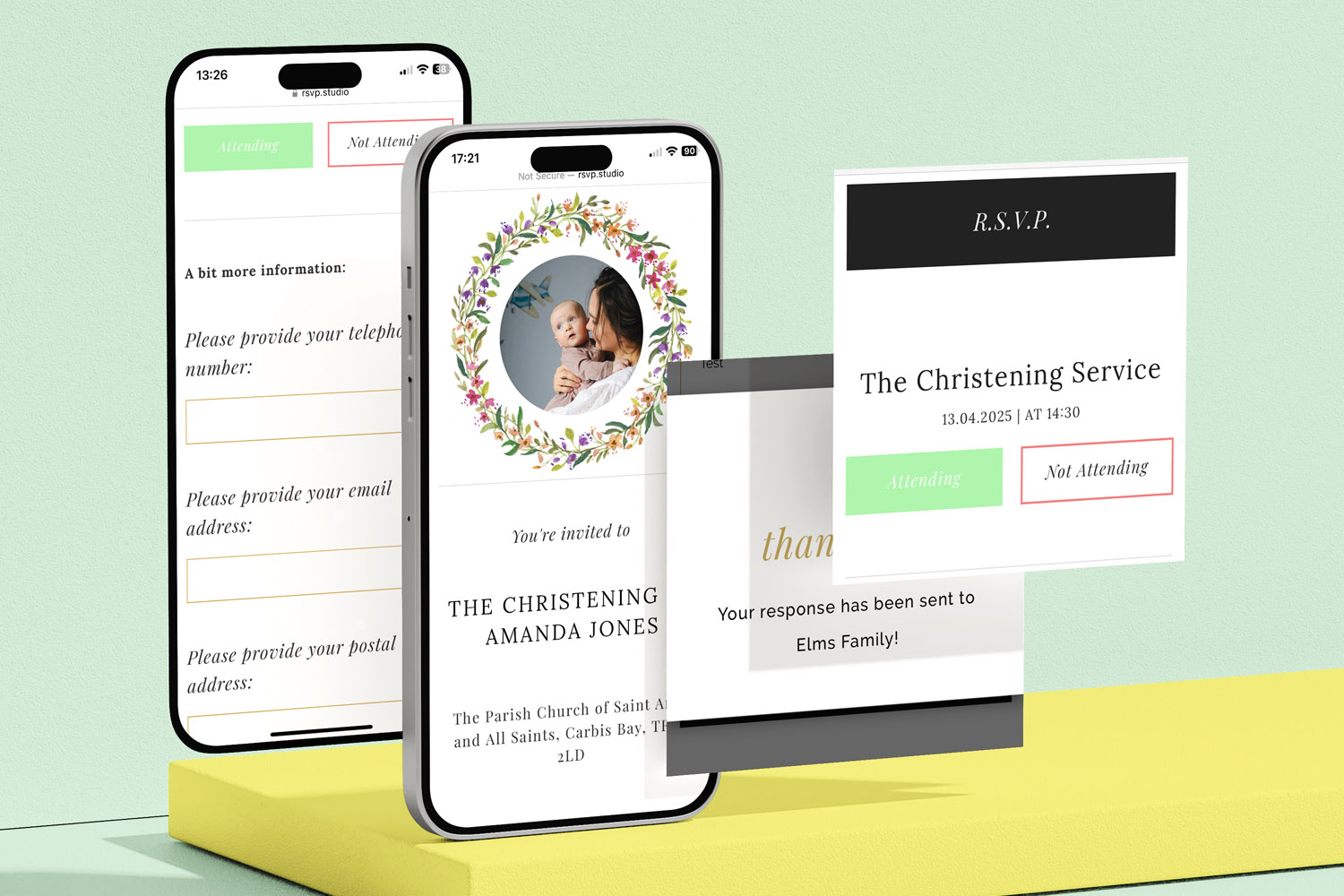
Sharing your RSVP.studio link: WhatsApp, SMS, email and printed invitations explained
Learn how to share your RSVP.studio link for event invitations via WhatsApp, SMS, email, and printed cards. This guide explains best practices, guest experience on devices, QR codes, and proper etiquette for sending or resending your RSVP link.
What to Include on Your RSVP.studio Event Page
Learn what to include on your RSVP.studio event page for smooth planning and clear communication. This guide highlights key details, optional extras, and tips to help you gather accurate RSVPs and ensure a welcoming, mobile-friendly guest experience.

From Our Blog
Online RSVP websites provide a streamlined solution for event planning. Visit the blog for insights into setting up RSVP pages for weddings, birthdays, and other celebrations.